Applications
An Application is the fundamental unit of Chevereto Cloud.
An Application is a fully isolated, managed instance of Chevereto with its own web server, database, and networking stack. You can manage multiple applications under a single account, making it easy to run separate projects, staging environments, or client sites independently.
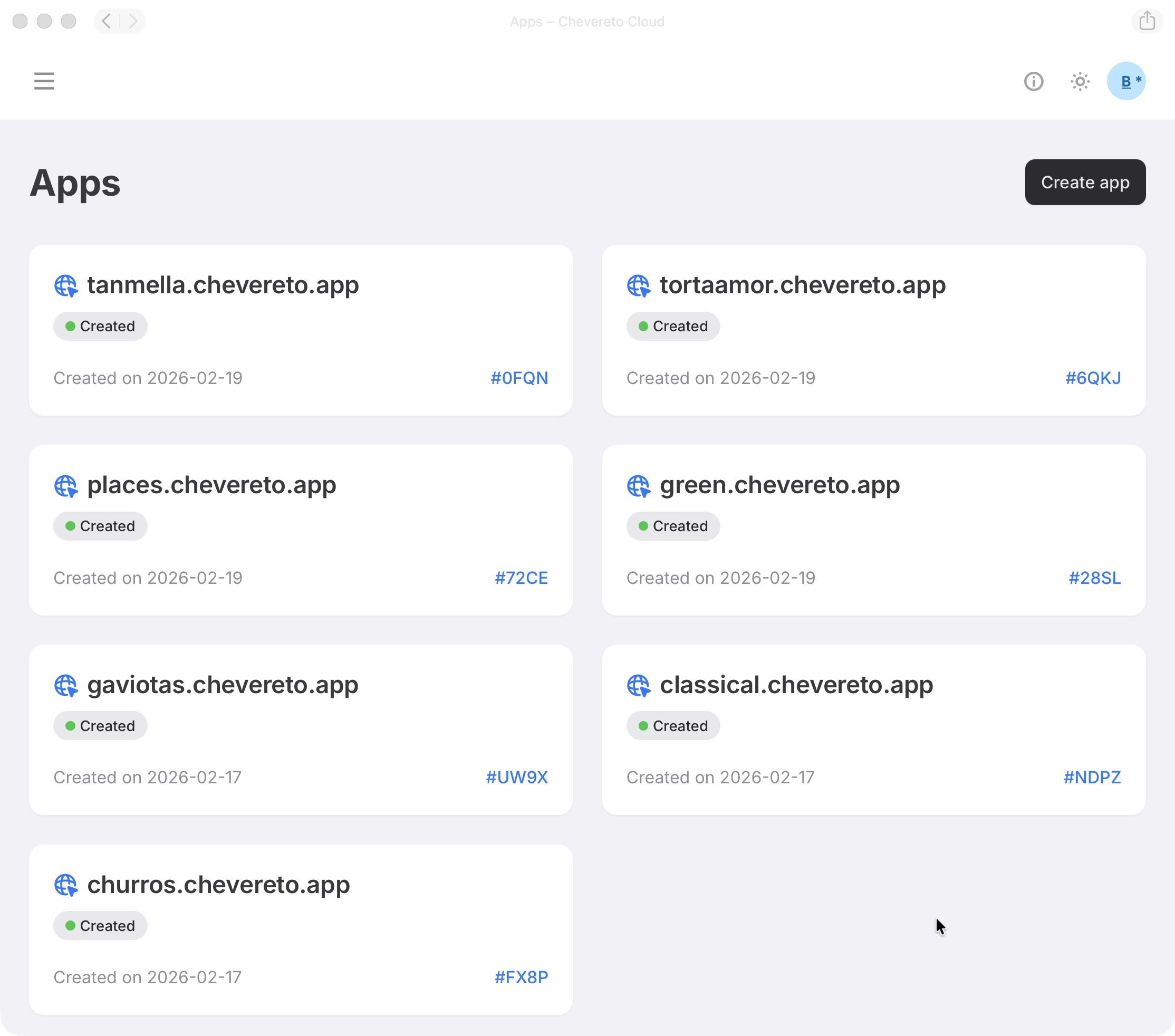
Create App
To create an App, follow these steps:
- Navigate to the Apps section in your dashboard and click Create app.
- Select a Plan: Choose the resources that fit your current needs. You can scale your plan vertically as your traffic grows.
- Choose a Domain: Provide an unique name for your chevereto.app domain. You can configure a custom domain later.
- Submit: Confirm all app settings are correct, then click Submit to create your application.
Your App
When you select an application from your list, you enter its specific management dashboard.
The top section provides the information of your instance. It includes: Plan, Location, Server, Created of your application. This information remains fixed for quick reference.
Below the header, the dashboard is organized into functional tabs to manage every aspect of your instance:
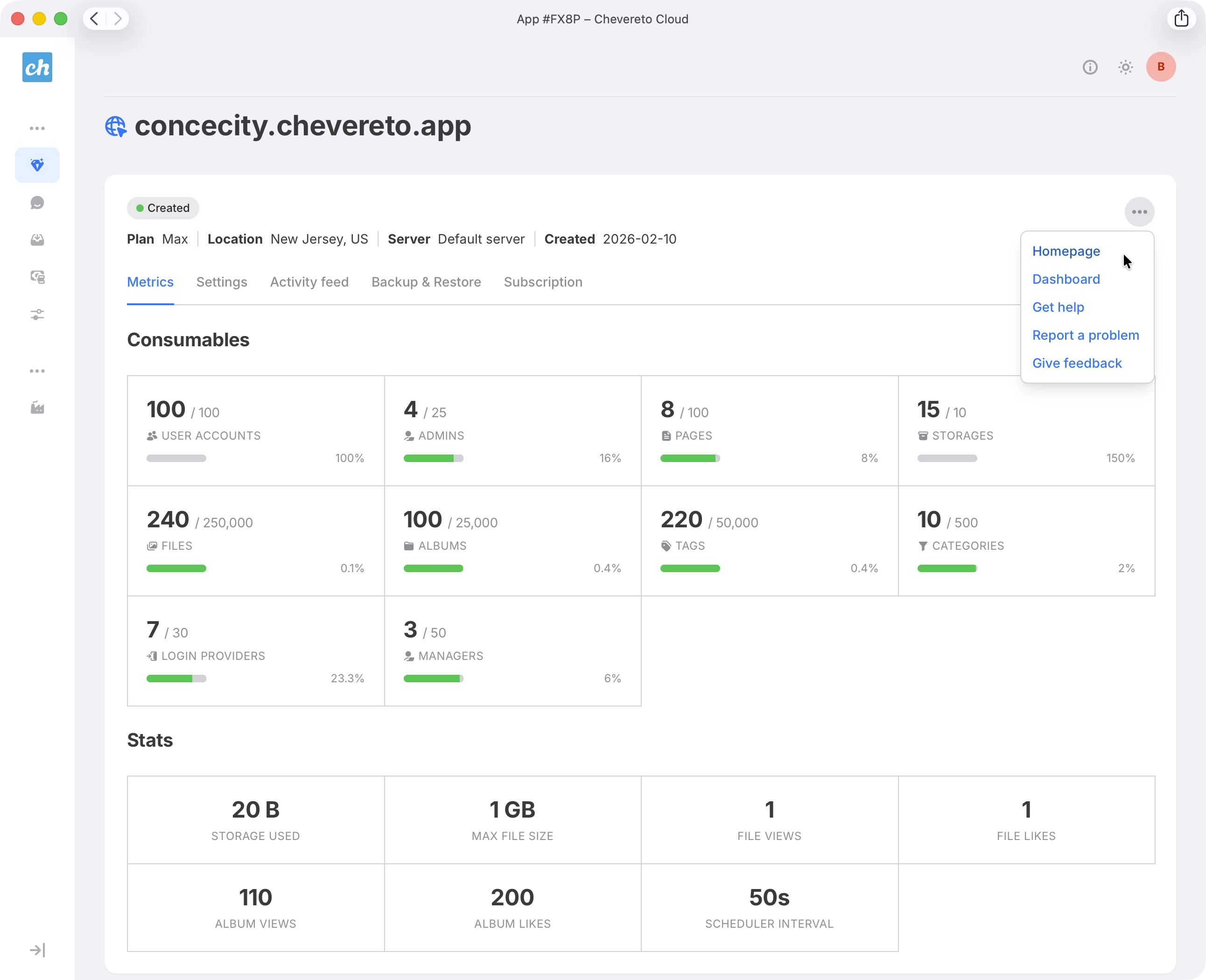
Metrics
The metrics section provides an overview of your application's performance and usage statistics.
Settings
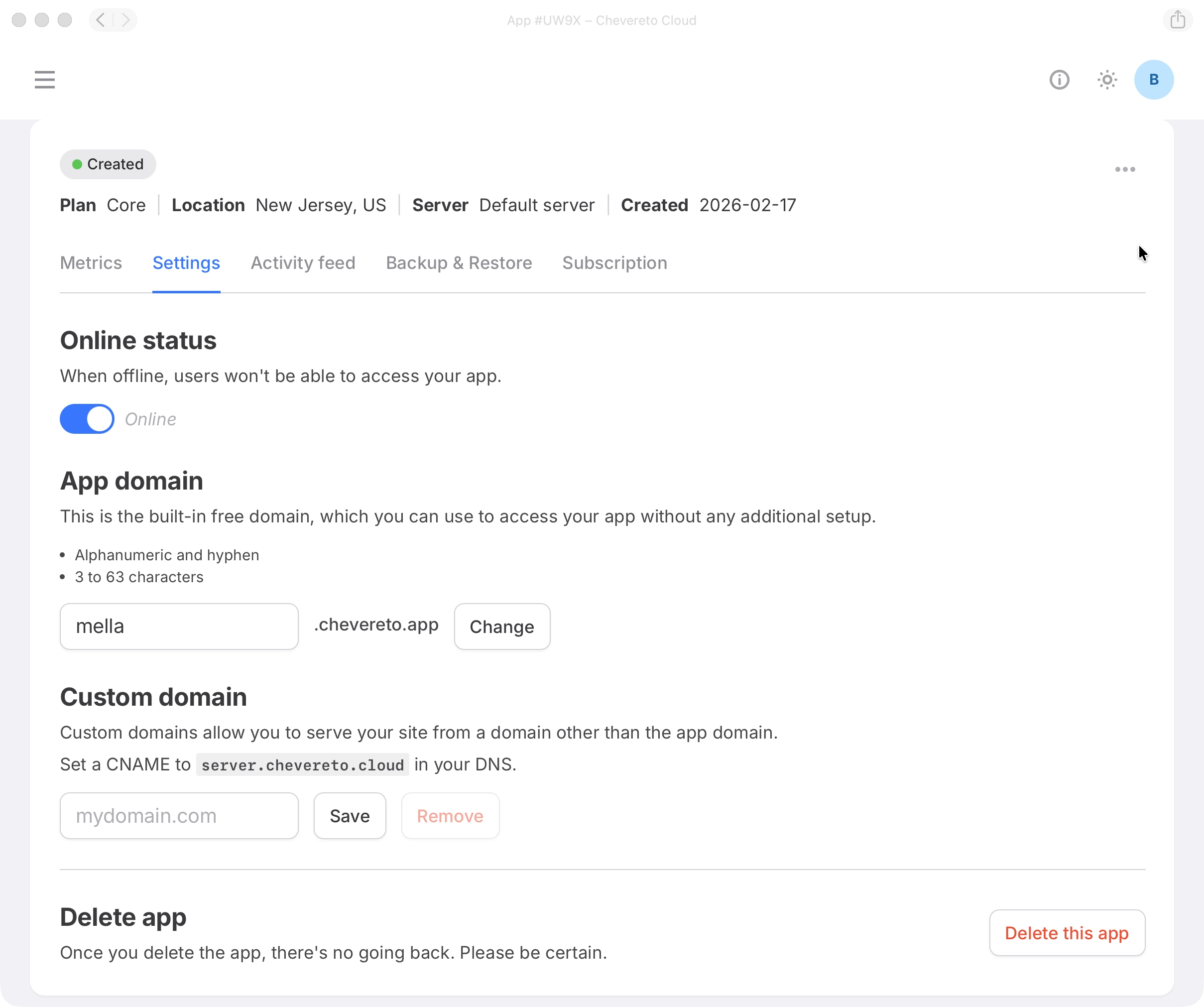
The settings section allows you to configure your:
- Online status
- Domain
- Custom domain
- Delete app
Delete App
Deleting an application is a permanent and irreversible action regarding the managed instance and its internal database.
When you delete an application, uploaded files and external storage are NOT deleted. You must manage or remove those resources directly within your storage provider's console.
The deletion also terminates the application's subscription immediately.
Activity Feed
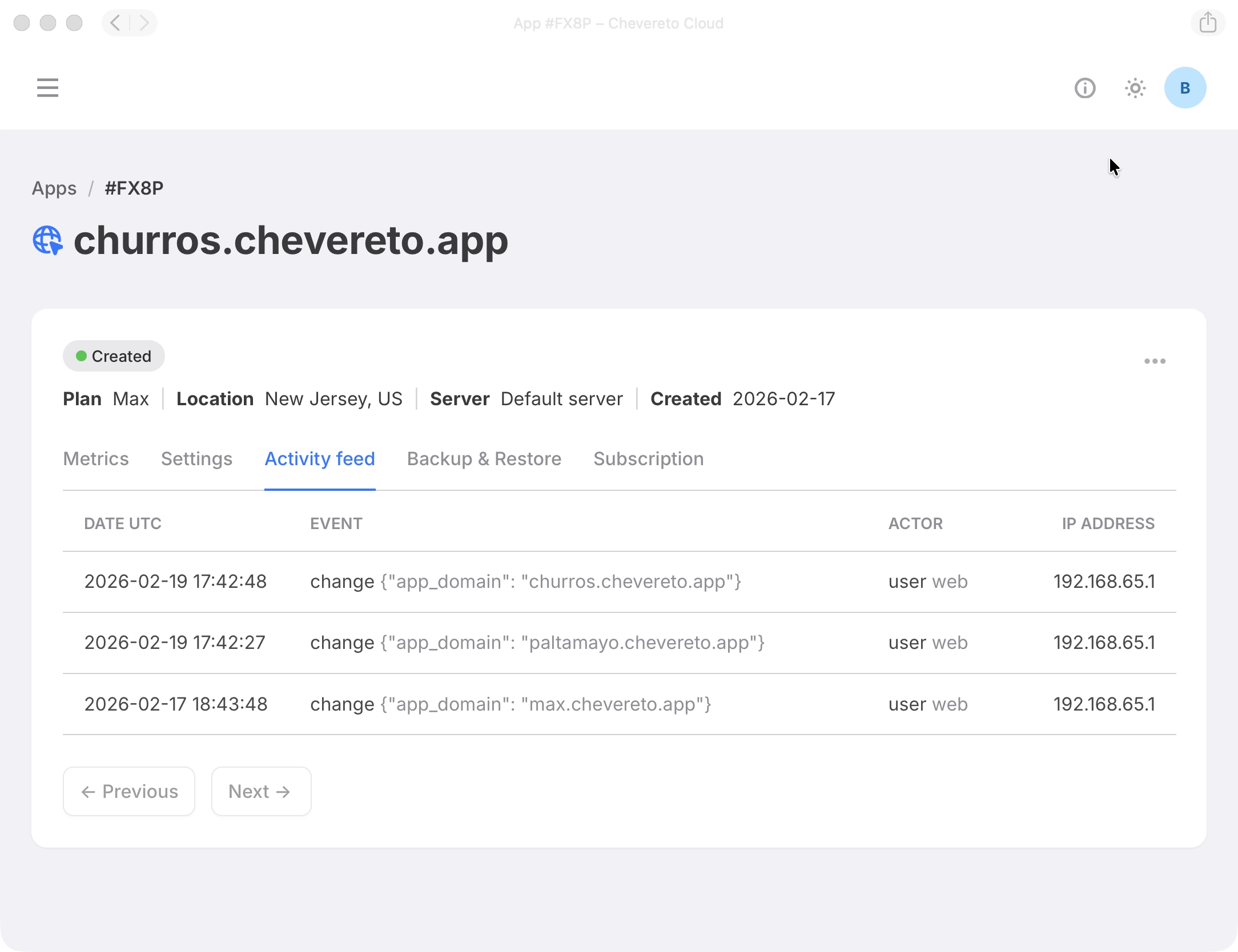
The activity feed shows recent events related to your application.
Backup and Restore
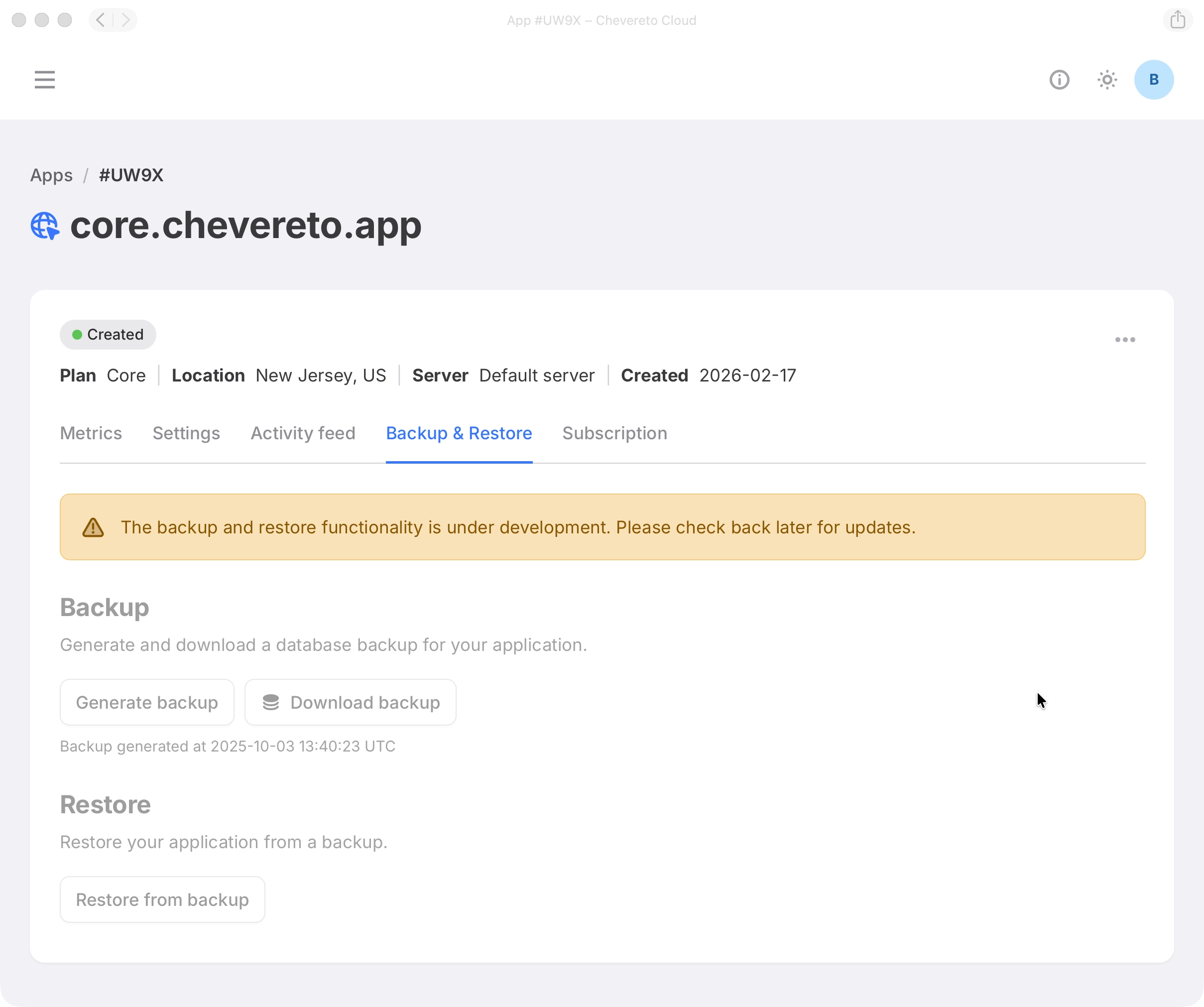
The backup and restore section allows you to create backups of your application's data and settings, and restore them when needed.
- Backup Click Generate backup and download a database backup for your application.
- Restore Select a backup file and click Restore from backup to restore your application's data.
Subscriptions
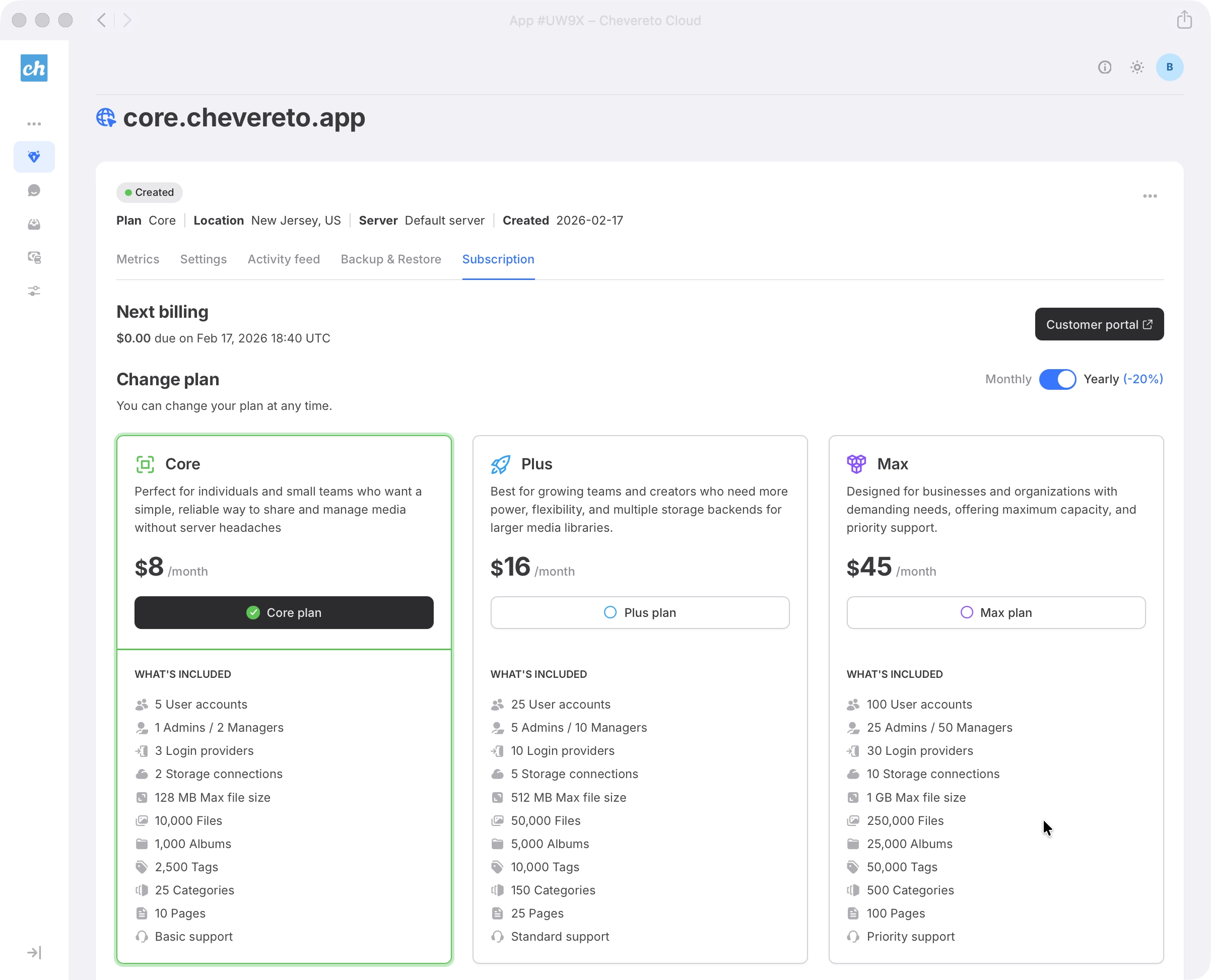
The subscription section allows you to manage your application's subscription plan.
You can upgrade or downgrade your subscription at anytime, and manage billing information on the customer portal.